
Setting up your brand board in PulseHub
Keep your logo, colours, and fonts in one place so every email, funnel, and website looks like you.
What is a brand board?
A brand board is a central space inside PulseHub where you store your business logo, brand colours, and fonts. Once set up, these assets are available every time you build something inside the platform. Instead of hunting for a hex code or re-uploading your logo each time, everything is ready to use from a single location.
Your brand board connects directly to the email builder, funnel builder, and website builder. This means your branding is consistent across every touchpoint without any extra effort.
Before you start
Gather the following before you begin. Having these ready will make the setup much faster.
Your logo file in PNG or SVG format (high resolution). If you have a dark and light version, gather both.
Your brand colour hex codes. For example: #220000. Your designer or brand guidelines will have these.
The names of the fonts you use for headings and body text.
Note: If you are unsure of your hex codes, tools like Adobe Color or Google's colour picker can help you identify them from an existing image.
How to create your brand board
Step 1: Navigate to brand boards
In the left-hand menu, click Marketing.
In the top navigation bar, click Brand Boards.
Click the blue Add a Design Kit button.
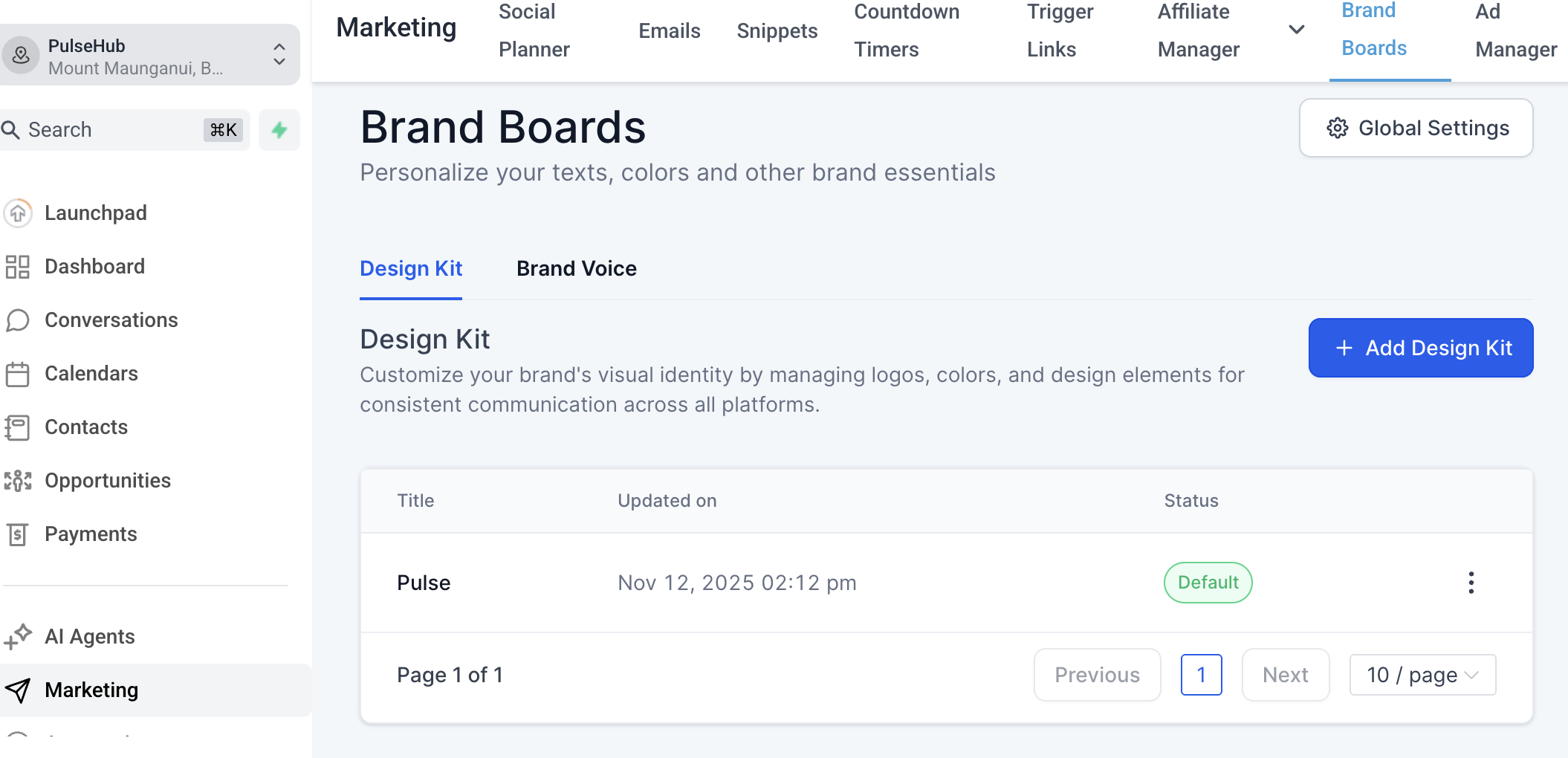
Step 2: Choose your starting point
You will be given two options. Select Start from Blank to build your kit from scratch, or choose a Template if you would like a pre-styled starting point.
Click Continue.
Step 3: Upload your logo
Click the Logos tab.
Upload your primary logo.
If you have a secondary logo (for example, a white version for dark backgrounds), upload that as well.
You can store up to two logos in each brand board.
Pro tip: Use a PNG file with a transparent background where possible. This ensures your logo sits cleanly on any background colour inside your emails and pages.
Step 4: Add your brand colours
Click the Colors tab.
Click the colour picker or enter your hex code directly to add each colour.
Give each colour a clear name such as Primary, Accent, or Background. This makes it easier to identify later.
You must add at least two colours and can add up to ten.
Step 5: Set up your fonts
Click the Typography tab.
Use the dropdown fields to add your fonts.
You can add between one and five fonts.
Add your heading font first, then your body font.
Pro tip: Your brand board is now ready to use. When you open the email builder, funnel builder, or website builder, your colours and fonts will appear in the relevant pickers automatically.
Setting a default brand board
If you have more than one brand board (for example, if you run multiple services or brands), you can set one as the default. This controls which colours and fonts appear first in the builders.
To set a default, click the three-dot menu next to the brand board and select Set as Default. The first brand board you create is set as the default automatically.
Important things to know
Changing colours in your brand board will not update existing emails or funnels you have already built. It only affects new designs going forward.
Your logos are saved to a dedicated folder in your media library with the brand board name for easy access.
You can edit your brand board at any time. Click the three-dot menu next to the board and select Edit.
Deleting a brand board cannot be undone. Be certain before you delete.
Next steps
Once your brand board is set up, open the email builder or funnel builder and test that your colours and fonts are appearing correctly. This takes less than a minute and confirms everything is connected.
If you run into any issues or your colours are not appearing, contact the PulseHub support team at support.pulsehub.nz.