
Setting up your integrations in PulseHub
Connect the tools your business already uses so PulseHub can work as your central system.
Why integrations matter
PulseHub works best when it is connected to the other tools in your business. Integrations allow your calendar, payment system, social media accounts, and advertising platforms to communicate with PulseHub so that leads, bookings, and payments are captured and tracked in one place.
This article covers the most important integrations for small businesses and service providers. You do not need to set up every integration at once. Start with the ones most relevant to how your business operates.
Where to find your integrations
Most integrations are found in Settings. In the left-hand menu, scroll down and click Settings, then select Integrations. From here you will see the available connections.
Payment integrations are found separately under Payments, then Integrations in the left-hand menu.
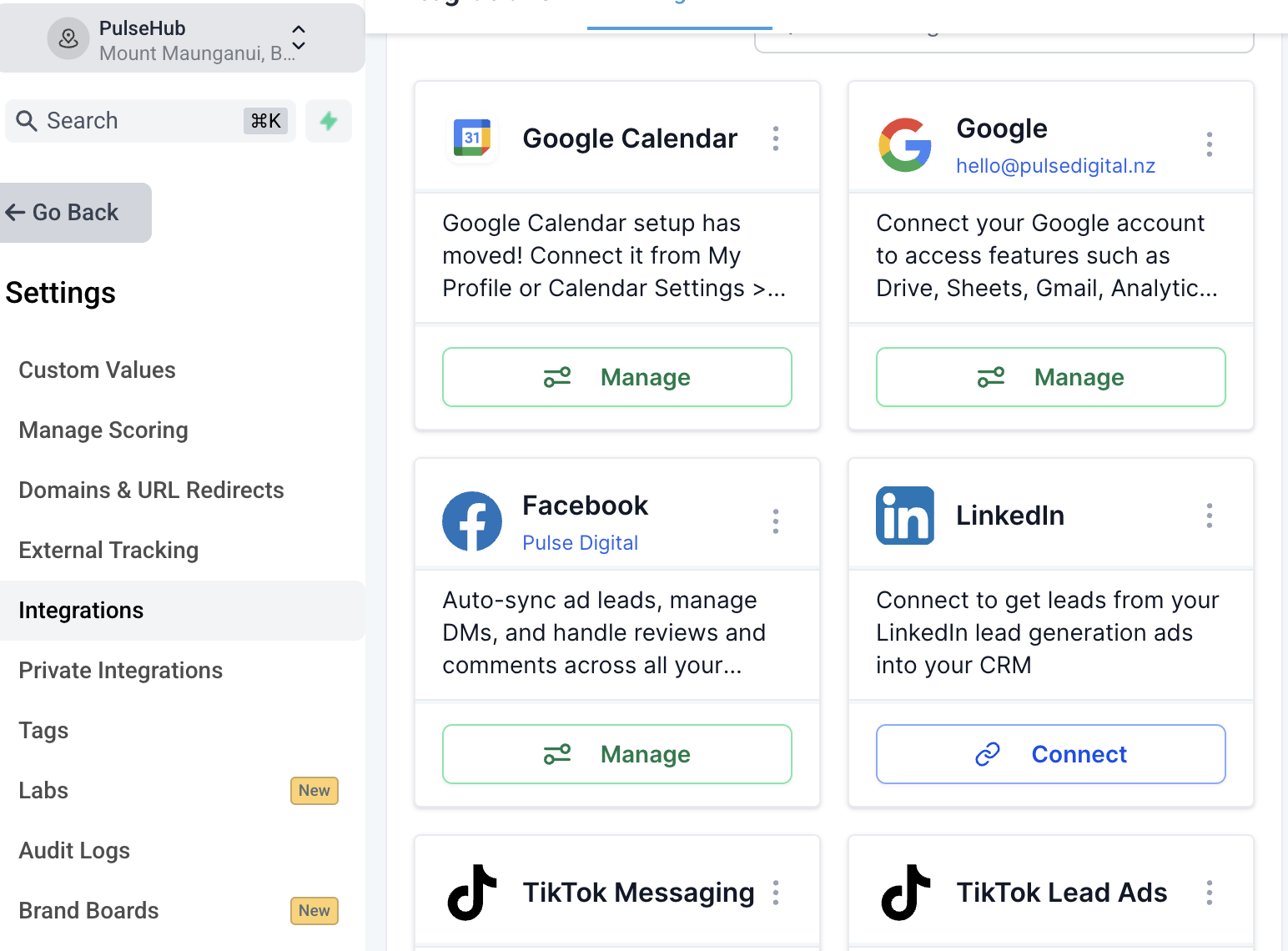
The integrations to set up first
Google Calendar
Connecting Google Calendar means that any appointment booked through PulseHub will automatically appear in your Google Calendar, and PulseHub will check your Google Calendar availability before confirming bookings. This prevents double-bookings.
Go to Settings, then Integrations.
Find the Google section and click Connect.
Sign in with your Google account and follow the prompts to authorise access.
Once connected, your calendar will sync automatically.
Pro tip: Make sure you connect the Google account that belongs to the team member who handles bookings. If multiple team members take bookings, each user should connect their own calendar inside their individual profile settings.
Gmail
Connecting Gmail allows you to send and receive emails through PulseHub using your own email address. This keeps all client communication inside PulseHub's unified inbox without it appearing to come from a generic system address.
Go to Settings, then Integrations.
Find Gmail in the list and click Connect.
Sign in with the Google account you use for business email.
Grant the requested permissions and confirm.
Stripe
Stripe is the payment gateway used to collect payments inside PulseHub. It is required to use invoices, payment links, online order forms, and recurring subscriptions. If you plan to take any payments through the platform, this should be one of the first integrations you set up.
In the left-hand menu, go to Payments, then click Integrations.
Click Connect with Stripe.
You will be directed to Stripe. Log in to your existing Stripe account or create one if you do not have one.
Follow Stripe's authorisation steps and return to PulseHub.
Once connected, you will see a Manage button confirming the link is active.
Note: You will need admin-level access in Stripe to complete this connection. If you are connecting a Stripe account for the first time, allow 1 to 2 business days for Stripe to verify your business details before payments can be processed.
Facebook and Instagram
Connecting Facebook and Instagram allows you to manage social media posts through PulseHub's social planner, receive Facebook and Instagram messages in the unified inbox, and pull lead data directly from Facebook Lead Ads into your CRM automatically.
Go to Settings, then Integrations.
Find the Facebook section and click Connect.
Log in to Facebook and select the Business Manager account and Facebook Page you want to connect.
Grant the requested permissions.
To also connect Instagram, ensure your Instagram account is linked to your Facebook Page inside Meta Business Manager before completing this step. Instagram will then appear as an option during the Facebook connection process.
Pro tip: You will need to reconnect Facebook and Instagram periodically when the access token expires. PulseHub will notify you when this happens. Simply click reconnect and log in again.
Google Business Profile
Connecting your Google Business Profile allows PulseHub to send automated review request messages to clients after an appointment or purchase. Reviews are pulled into your dashboard so you can monitor and respond without leaving PulseHub.
Go to Settings, then Integrations.
Find Google Business Profile and click Connect.
Sign in with the Google account that owns your business profile.
Select the correct business listing and confirm.
Other integrations worth knowing about
Zapier: If you use tools that are not natively integrated with PulseHub, Zapier can bridge the gap. It allows PulseHub to connect with thousands of third-party apps. To get started, go to Settings, then Integrations, and find Zapier in the list.
Zoom: If you run video calls or online appointments, connecting Zoom means PulseHub can automatically generate a unique Zoom link for each booking and include it in the confirmation message sent to your client.
TikTok: If you run TikTok Lead Ads, connecting your TikTok account allows new leads from those ads to land directly in your CRM contact list without manual entry.
Need help?
If you are unsure which integrations apply to your business, reach out to the PulseHub team at support.pulsehub.nz and we can advise based on how your account is set up.